Detecting virtual keyboards (when typing in an input field)
Sometimes, it is useful to differentiate between physical and virtual keyboards in a web application. In my case, I had built a new messaging system for Yanteres with a responsive design which could be used on any device. While responsive design is a given on today’s web, the behavior of certain actions — which can’t be controlled via CSS — is different on mobile vs desktop. In the case of the aforementioned messaging system, hitting Return on physical keyboards is expected to send a message, while hitting Return on a phone’s or tablet’s virtual keyboard is expected to insert a newline.
Screen width media queries won’t cut it
On first thought, one may be tempted to use a media query in JavaScript to change the behavior for mobile vs desktop. However, let’s not forget that the screen size isn’t what changes the behavior here. A mobile phone or tablet can be hooked up to a physical keyboard and a desktop computer can also have a touch screen. Also, in landscape mode, a tablet resolution is essentially that of a small desktop in most responsive designs.
We need to differentiate between a physical and a virtual keyboard rather than
screen size, and browsers currently have no API to do so that I am aware of.
Searching high and low, I’ve found
many
people
asking
for
a way to change the layout in response to the presence of a virtual keyboard, or
lack thereof, but
only one discussion
on the actual behavior of the keyboard, which had no solution. Then I had a
thought — does a virtual keyboard care about when you press and release keys the
way a physical keyboard does, or does it fire keydown and keyup events
instantaneously?
Counting key press and release time
I got the hunch that perhaps virtual keyboards fire the events in rapid
succession in a way that was impossible for humans, and immediately went on to
test my hunch on iOS and Android devices and desktop browsers by binding the
keydown and keyup events that would log the time difference between key
press and release.
const interceptEnterKey = (message) => {
  let start = 0

  message.addEventListener('keydown', () => {
    start = Date.now()
  })

  message.addEventListener('keyup', () => {
    // log ms between keydown and keyup
    console.log(Date.now() - start)
  })
}

const initTextArea = () => {
  const message = document.getElementById('message_body')
  interceptEnterKey(message)
}

document.addEventListener('DOMContentLoaded', initTextArea)
The results were pretty much as I had expected. Virtual keyboards on mobile devices fire the events at physically impossible speeds.
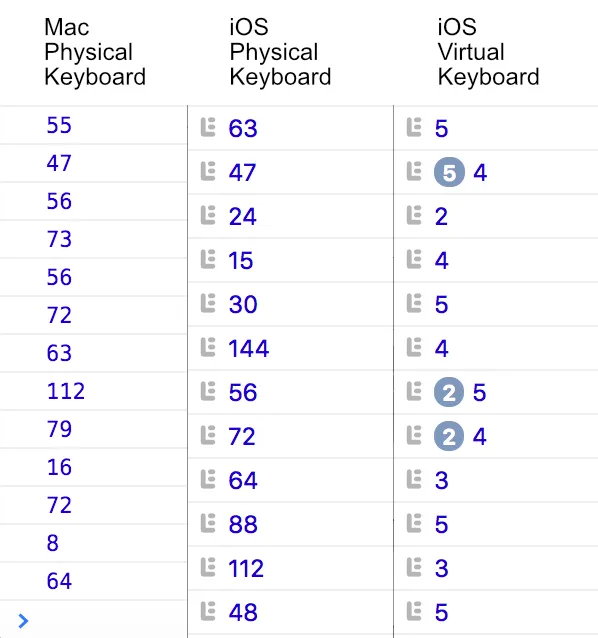
When it came to Windows and Linux, I got pretty much the same results as with Mac, Android was slightly slower, and I didn’t get to test it on Windows touch devices (if anyone wants to help with that, please do). In summary, physical keyboards almost always returned over 30ms — even with quickly jabbing the keys, iOS virtual keyboards always took less than 10ms, and Android virtual keyboards were around 12ms.
Key press and release times are not 100% consistent
So, the answer is to count the milliseconds between keyup and keydown and
you shall know whether or not you have a virtual or physical keyboard, right?
Unfortunately, one key press and release won’t always give you the right answer.
In some cases, a physical keyboard will have an odd key press that lasts less
than 10ms (pictured above) and Android will have an odd one that lasts up to
25ms. The solution I came up with was to keep count of each key press time and
then to find the average when I needed it. In my application, that would be when
the user presses the Return key. If the average time is over 25ms,
chances are good that it’s a physical keyboard.
const interceptEnterKey = (message) => {
  let start = 0
  let keyTimes = []

  message.addEventListener('keydown', (e) => {
    start = Date.now()

    if (e.key === 'Enter') {
      // ignore Return if it's the very first key (no average yet)
      if (!keyTimes.length) {
        e.preventDefault()
        return
      }

      const avgKeyTime = keyTimes.reduce((x, y) => x + y) / keyTimes.length

      // > 25ms indicates a physical keyboard
      if (avgKeyTime > 25) {
        e.preventDefault()
        keyTimes = []
        e.target.form.submit()
      }
    }
  })

  message.addEventListener('keyup', () => {
    keyTimes.push(Date.now() - start)
  })
}
// ...
Newlines with physical keyboards
The last step for a proper messaging system is to allow users of physical
keyboards to enter newlines using
Shift/Option/Meta/Etc + Return. All
that needs to be done here is to check whether those keys are pressed on the
keydown event, and we’re done! I didn’t want a very large if statement, so
I put it in its own function.
const isKeyRawEnter = (e) =>
  !e.ctrlKey && !e.altKey && !e.shiftKey && !e.metaKey && e.key === 'Enter'
- if (e.key === 'Enter') {
+ if (isKeyRawEnter(e)) {TL;DR
The average time difference between keydown and keyup can be a good
indicator of whether a user is typing on a physical or virtual keyboard. Here is
the full code to an example that sends the message when Return is
pressed on a physical keyboard and adds a newline when pressed on a virtual
keyboard.
const isKeyRawEnter = (e) =>
  !e.ctrlKey && !e.altKey && !e.shiftKey && !e.metaKey && e.key === 'Enter'

const interceptEnterKey = (message) => {
  let start = 0
  let keyTimes = []

  message.addEventListener('keydown', (e) => {
    start = Date.now()

    if (isKeyRawEnter(e)) {
      if (!keyTimes.length) {
        e.preventDefault()
        return
      }

      const avgKeyTime = keyTimes.reduce((x, y) => x + y) / keyTimes.length

      // > 25ms indicates a physical keyboard
      if (avgKeyTime > 25) {
        e.preventDefault()
        keyTimes = []
        e.target.form.submit()
      }
    }
  })

  message.addEventListener('keyup', () => {
    keyTimes.push(Date.now() - start)
  })
}

const initTextArea = () => {
  const message = document.getElementById('message_body')
  interceptEnterKey(message)
}

document.addEventListener('DOMContentLoaded', initTextArea)<form id="message-form" method="post" action="/messages">
<div>
<textarea id="message_body" name="message[body]"></textarea>
</div>
<div>
<button type="submit">Send</button>
</div>
</form>